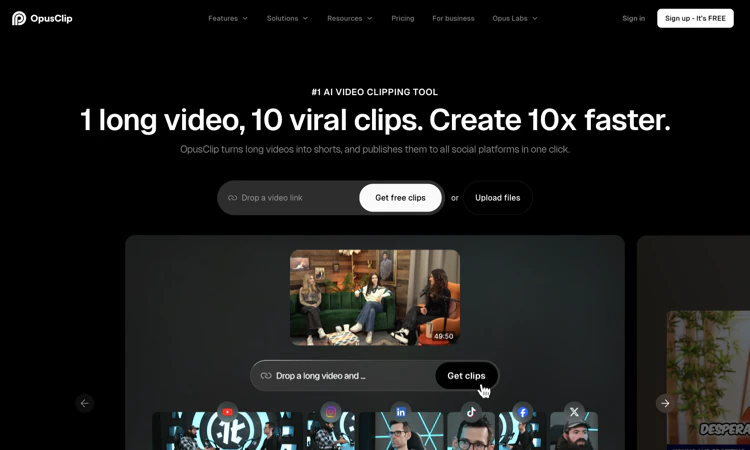
Opus Clip is an AI clipping and reframing platform for turning longer videos into short-form content.
We are not the official developer of Opus Clip. This page helps users find, understand, and use the product.
Opus Clip is the product commonly branded OpusClip on its official website. It begins with a video link or uploaded file and proposes shorter segments for social channels. Opus Clip presents ClipAnything for highlight selection across different video genres and ReframeAnything for resizing footage while following moving subjects. Its public pages also describe captions, B-roll, an editor, brand templates, team workspaces, and publishing tools. Opus Clip is useful when a creator already has footage but needs help locating and packaging smaller stories within it. Its broader visual-clipping positioning makes sports, gaming, and vlogs relevant test cases alongside spoken interviews. Model suggestions and virality scores remain suggestions: a clip needs an understandable beginning, accurate context, and an intentional ending. The review here covered the public site and plan details without uploading footage or independently validating performance claims.
A useful evaluation separates what the official pages establish from what still needs testing. This edition concentrates on evidence quality, permissions, and the checks needed before the service becomes part of a larger workflow.
For Opus Clip, prepare a supported video link or an authorized source file with a clearly identifiable subject. The target deliverable is a concise clip whose story and framing remain understandable on a mobile screen. Use this as an acceptance condition rather than assuming that every completed draft or preview is ready for its final audience.
Before calling a Opus Clip project complete, check story completeness, caption accuracy, subject tracking, visual continuity, and any added B-roll. Preserve the original material so a correction can be traced to the source. Keep a copy of the accepted deliverable through the available official workflow, especially when storage or access is limited.
Evaluate Opus Clip against a written requirement: a concise clip whose story and framing remain understandable on a mobile screen. The public pages can establish the advertised workflow, official domain, and current plan descriptions. They cannot establish the quality of an unperformed project or guarantee a future result. Keep those different kinds of evidence explicit in a decision note.
The first Opus Clip permission question is whether you may provide a supported video link or an authorized source file with a clearly identifiable subject. Consider the people, client assets, or unreleased information involved. The next question is who can receive the output and whether publishing, external sharing, or ordering introduces an additional commitment. Test with approved material before expanding the workflow.
For the final Opus Clip fit check, account for Virality scores do not guarantee reach; free output has watermarks, no editing, and a three-day export window, while complex motion can require framing review. Use a small pilot to find the unresolved questions, then consult the relevant official documentation or provider support. Record the source and date for important plan decisions. A clear evaluation can conclude that a product is suitable for one task while leaving another task unverified; it does not need an unsupported universal safety or performance claim.
Opus Clip publishes a privacy policy and identifies Opusclip Inc. in its footer. A clipping project can contain faces, voices, names, and unpublished business information, so the decision to upload should depend on the footage and the applicable service terms. Connecting a social profile for posting is a separate authorization step. Opus Clip can first be assessed with a short public or otherwise approved source. Review destination accounts and project-sharing settings before enabling a team workflow or any automated distribution.
For Opus Clip, review the current policies before providing sensitive material. This public-page check is not a security audit.
Opus Clip makes the long-video-to-short-video workflow easy to demonstrate. Highlight selection, animated captions, and automatic reframing correspond to visible tasks that creators otherwise perform manually. The official website shows customer stories and audience claims, but those do not establish that a new clip will receive views. No reliable single origin of current search interest was established. Treat the product name and its OpusClip spelling as the same brand when finding the official site.
The Opus Clip public homepage was reachable on 2026-10-22; individual account features and jobs were not tested.
Compare Opus Clip alternatives against the required input and deliverable; capabilities and commercial terms differ.
The official Opus Clip website is https://www.opus.pro/. Use the official navigation to reach account, pricing, downloads, and support rather than relying on a similarly named search result.
The Opus Clip Free plan lists 60 credits per month, watermarked clips, and output up to 1080p. Its pricing page explicitly says that free clips stop being exportable after three days and that the free tier does not include editing. Starter and Pro add different editing, branding, export, and publishing capabilities, while Business is tailored. Opus Clip displays annual and monthly prices; compare the billing interval, credit allowance, storage, and export retention together rather than judging a plan only by its headline price.
Yes for uploads and the project dashboard; public pages can be viewed without an account.
The official public attribution for Opus Clip is Opusclip Inc.
Yes: the official Opus Clip public website was accessible when checked on 2026-10-22. No account creation, customer upload, paid output, or physical order was tested.
Opus Clip: An actual approved pilot, the relevant permissions, and a current plan check are still needed. This guide confirms public-page observations; it does not establish the quality of an unperformed project.
Virality scores do not guarantee reach; free output has watermarks, no editing, and a three-day export window, while complex motion can require framing review. A practical Opus Clip evaluation should include one example that exposes the limitation most relevant to your project. Check the current plan or item details again before a subscription, purchase, integration, or external handoff.
Start with Opus Clip and use one speaking segment and one movement-heavy segment, evaluated against the same acceptance checklist. Keep the source, acceptance condition, and final decision together so the next step is based on an observed result.
Official references checked or linked from the reviewed website: Official website; Official pricing; Privacy policy.
Last checked: 2026-10-22. Verify current Opus Clip plan details before a purchase or integration.
Flying Roadster AI Video Generator has a clear workflow: upload a car, choose framing, and create a private flying car clip for download.
Project Moon Life is a free, no-sign-in browser simulator with a clear life loop, changing conditions, and an archive of personal outcomes.
Random Topic Generator is a free AI-powered speaking practice tool that helps users generate fresh topics for impromptu speeches, presentations, conversations.
Seven free football games in your browser: career sims, a legend-guessing quiz, squad building, and a daily seeded challenge — no account, no download.
An instant PSL rating that never leaves your device: one photo is processed entirely in-browser and returns a score, tier, breakdown, and shareable card.
Recreate the hidden stripe of a world flag with HSB sliders and a live preview — five rounds a game, scored by how perceptually close your color lands.